
Real Estate Use Case
AI Virtual Staging for Occupied Homes: Remove Clutter, Replace Furniture, and List Without Waiting
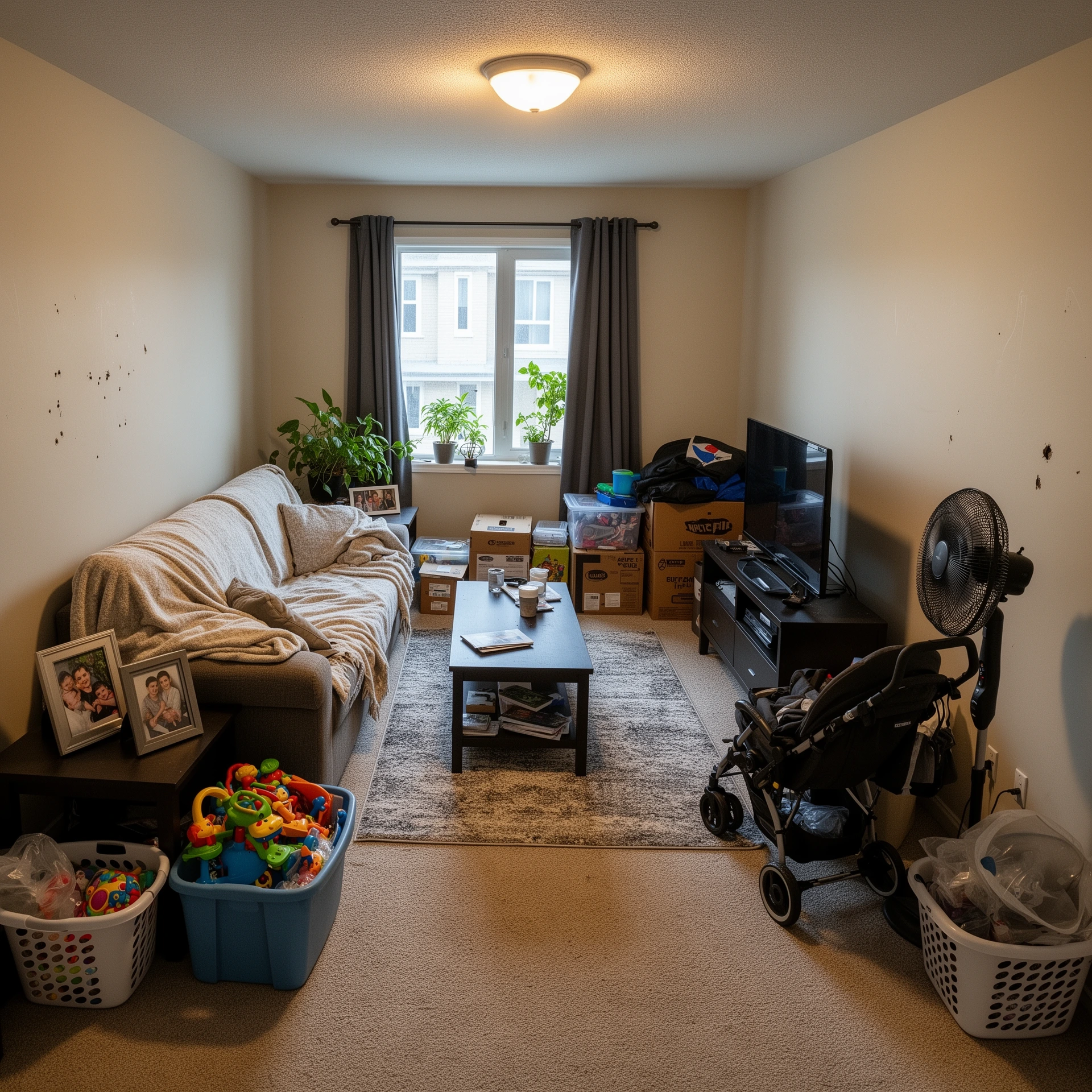
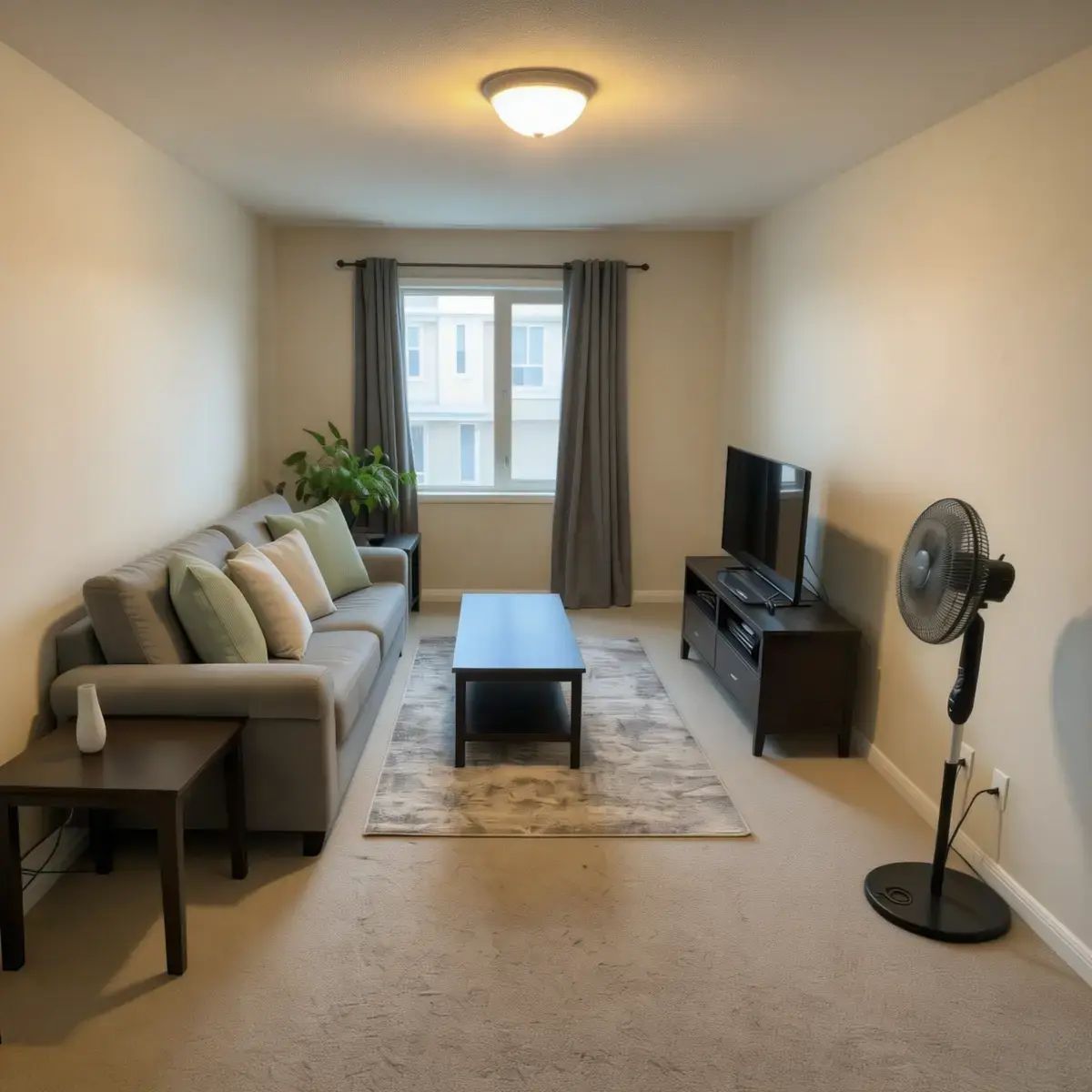
Cluttered rooms, mismatched furniture, and the everyday reality of family life cost listings money. AI virtual staging removes clutter and replaces furniture digitally — producing listing-ready photos from the room as it exists today, without a stager, a photographer rebooking, or asking the tenant to move out first.
The same workflow handles three situations: removing clutter and personal items from an occupied home, replacing dated or mismatched furniture with fresh styling, and showing what a space will look like after a planned renovation — so you can list before the work is done.
This guide covers when and how to use AI real estate photo editing for occupied properties, what the process costs compared to alternatives, and what disclosure the law requires.
Key Takeaways
| Point | Details |
|---|---|
| The problem | Occupied homes show worse than vacant ones — cluttered rooms, wrong furniture, and daily life visible in photos reduce buyer interest and offer prices. |
| The solution | AI photo cleanup removes clutter and replaces furniture digitally, producing listing-ready photos from the room as it exists today. |
| The renovation angle | Show the finished result before the renovation starts — list earlier, avoid empty months, attract buyers who can see the potential. |
| Cost | ~€0.49 per edit with RogerApp.ai versus €15–50 per image for traditional virtual staging services. |
| Legal requirement | Label edited photos clearly — "Virtually staged" or "Digitally enhanced" — in the listing description or image caption. |
Why occupied properties are harder to sell — and what the photos have to do with it
Most buyers today encounter a property online before they ever visit. The listing photos are the first showing. When those photos show personal belongings, mismatched furniture, a child's bedroom with clothes on the floor, or a kitchen mid-use — buyers form an impression before they read a single word of the description.
The challenge is structural. An agent selling a tenant-occupied property cannot stage it the way they would a vacant home. A family selling their own home is living in it while it is on the market. A landlord relisting between tenants may have a property that needs renovation — but also cannot afford months of vacancy while the work happens.
In each case, the photos reflect the current reality rather than the property's potential. AI real estate photo editing changes that equation: the photos can show the potential while being clearly labelled as visualizations or digitally enhanced images.
Three situations — same solution
Situation 1 — Clutter and personal items in an occupied home
A family home with children typically looks lived-in. Toys, laundry, personal photos, full bookshelves, mismatched items accumulated over years — none of this represents the property's value, but all of it appears in listing photos.
The workflow in RogerApp.ai:
- Photograph the room as it is — phone photos work
- Use Auto-Masking — type the object name in the Object to find field: "toys", "laundry", "dishes", "boxes"
- For items Auto-Masking misses, switch to Manual Masking and paint over them with the brush
- Prompt: "Remove all selected items from the photo. Reconstruct the background naturally — match the floor texture, wall color, and lighting of the surrounding area. Keep all furniture and architectural features exactly as they are."
- Process — the AI removes selected items and fills the background naturally
The result: the same room, same furniture, same light — but clean, neutral, and ready for buyers to imagine their own life in the space instead of seeing someone else's.
Situation 2 — Dated, worn, or wrong-style furniture
The furniture is not coming with the property — but it is in every photo. A dark mahogany dining set in a bright Scandinavian-style apartment. A worn sofa that has seen better days. Furniture that fits the current owner's taste perfectly but reads as dated to the target buyer.
RogerApp.ai handles this in two steps: remove the existing furniture, then add new styling. This is where the workflow overlaps directly with virtual staging — except the starting point is a real occupied room, not an empty one.
- Use Manual Masking or Auto-Masking to select the furniture to replace — type "sofa", "dining table", or "wardrobe" in the Object to find field
- Prompt: "Remove the sofa, coffee table, and rug. Replace with a light grey linen sofa, low oak coffee table, and a neutral jute rug. Keep the flooring, walls, and windows exactly as they are."
- Generate multiple style versions from the same room by changing the furniture description each time
For agents exploring home designs AI options before committing to a renovation direction or a full restage, this workflow lets buyers react to visual options rather than trying to imagine from a description. The same masking precision that removes one sofa can replace it with three different styles in separate edits, giving the agent before-and-after pairs for the listing.
Situation 3 — Renovation planned but not started
A worn kitchen floor. Old bathroom tiles. Cabinets that need replacing. The seller or landlord wants to renovate before selling or relisting — but that means weeks of empty property, lost rental income, or a delayed listing launch.
RogerApp.ai can visualize the renovation before it happens. Upload a photo of the current kitchen with the worn floor, describe the planned finish, and get a photorealistic image of how the space will look after the work is done. This is not a construction document — it is a real estate image enhancement that shows buyers the potential.
The practical benefit for landlords and sellers: list the property while the renovation is being arranged or in early stages. Use clearly labelled "renovation visualization" images alongside the current photos. Buyers who can see what is coming are more likely to commit early — and at a price that reflects the finished result, not the current state.
What RogerApp.ai produces — and what it does not
RogerApp.ai produces photorealistic images showing what a room could look like — cleaned up, restyled, or renovated. It does not produce floor plans, structural documents, or renovation specifications.
Buyers should always see the actual current photos alongside any digitally edited versions. The edited images show potential; the real photos show reality. Both are needed for an honest and compliant listing.
What it costs
| Option | Cost | Turnaround | Best for |
|---|---|---|---|
| Traditional staging (physical) | €500–3,000+ per property | Days to weeks | Vacant properties, luxury market |
| Virtual staging service (manual) | €15–50 per image | 24–72 hours | Empty rooms, high volume |
| Virtual staging software / AI tool (auto) | €1–5 per image | Minutes | Quick declutter, style options |
| RogerApp.ai | ~€0.49 per edit | Minutes | Clutter removal, furniture replacement, renovation visualization |
The key difference from dedicated virtual staging programs: RogerApp.ai uses masking precision to remove exactly what you select and replace it with exactly what you describe. Competing AI virtual staging real estate tools typically empty the whole room automatically — useful for vacant properties, but less suited to occupied homes where you want to keep some elements and remove others.
AI virtual staging real estate workflows typically start with removal and end with restaging — the two steps combined deliver the full before-and-after result for listing use. For agents comparing virtual staging for realtors, virtual home staging software, and AI editing tools, the key question is whether the tool handles occupied rooms as well as empty ones — most do not.
Is it legal to use edited photos in listings?
Yes, with clear disclosure. The standard practice is to label edited images in the caption or listing description. "Virtually staged", "Digitally enhanced", or "Digitally decluttered" are all accepted formulations. Most MLS systems allow decluttering and virtual staging with appropriate labelling.
The principle is consistent across markets: photos that remove personal items or clutter to present the space neutrally are generally acceptable. Photos that materially misrepresent the property — removing structural problems, showing renovations that will not happen, or implying features that do not exist — are not.
The practical approach: show the real current photos and the edited versions side by side in the listing, with clear labels on the edited images. This is transparent, compliant, and builds buyer trust — they can see both the current reality and the potential.
Frequently asked questions
How do you make an occupied home look vacant in listing photos?
Use AI object removal to select and remove furniture, clutter, and personal items from the room photo. RogerApp.ai's Manual Masking lets you paint over specific items for removal; Auto-Masking finds objects by name automatically. The AI reconstructs the background behind removed items — flooring, walls, and architectural details fill in naturally.
Can AI remove furniture from real estate photos?
AI object removal selects and removes furniture from photos, reconstructing the background naturally. In RogerApp.ai, you can remove specific pieces using Manual Masking or all furniture in a category using Auto-Masking. After removal, virtual staging can add new furniture in a different style to the same image — making RogerApp.ai the best software for real estate photo editing that combines object removal and restaging in one workflow.
What is the difference between decluttering and virtual staging?
Decluttering removes items from a room photo — clutter, personal belongings, or furniture — to show the space more cleanly. Virtual staging adds photorealistic furniture and décor to an empty or decluttered room. In practice these are often combined: remove the existing furniture using an AI object remover, then add new styling with virtual staging. RogerApp.ai handles both in one workflow.
Can I show renovation potential in listing photos before the work is done?
AI visualization can show what a space will look like with new flooring, updated cabinets, or a refreshed finish — before the renovation starts. Label images clearly as "renovation visualization" or "digitally enhanced" so buyers understand they are seeing a planned result, not the current state. This lets you list earlier and attract buyers who can commit to the post-renovation price.
Do I need to disclose that listing photos have been digitally edited?
Yes. Label edited images clearly in the caption or listing description — "Virtually staged", "Digitally enhanced", or "Digitally decluttered" are all accepted formulations. Show both the real current photos and the edited versions in the listing. Most MLS systems allow decluttering and virtual staging with appropriate disclosure. Check local real estate photo editing software guidelines and MLS rules as requirements vary by region.
Can the same room be shown in multiple furniture styles?
One source image produces multiple style versions by changing the prompt after removing the original furniture. The same living room can be restyled as Scandinavian minimal, warm contemporary, premium dark, or any bespoke direction in the same session — giving buyers and agents a before-and-after pair plus multiple style options targeting different buyer profiles.
What is the best way to photograph a room for AI editing?
Use a wide-angle lens or phone camera set to the widest setting. Shoot in daylight with natural light visible. Stand in a corner or doorway to capture as much of the room as possible. Even a phone photo with good light produces good AI editing results — the source photo quality affects the output quality directly.
Is AI virtual staging legal for rental listings?
Yes, with the same disclosure rules that apply to sales listings. Label edited images clearly in the listing. For tenant-occupied rental properties, AI virtual staging is especially useful when a tenant's personal belongings fill the photos, when furnishings are dated, or when renovation work is planned before relisting — all situations where traditional staging is not possible while the tenant remains in place.
How to do it in RogerApp.ai
Method 1 — Remove clutter and personal items
- Upload the room photo to the Photo Editor
- Use Auto-Masking — type the object name in the Object to find field: "toys", "laundry", "dishes", "boxes"
- For items Auto-Masking misses, switch to Manual Masking and paint over them with the brush
- Prompt: "Remove all selected items from the photo. Reconstruct the background naturally — match the floor texture, wall color, and lighting of the surrounding area. Keep all furniture and architectural features exactly as they are."
- Review and regenerate for cleaner results
Prompt tip: Describe what to keep, not what to remove. "Keep the sofa and flooring exactly as they are" produces better results than "do not change the sofa or floor."
Method 2 — Replace dated or mismatched furniture
- Upload the room photo
- Use Auto-Masking to select the furniture category: "sofa", "dining table", "wardrobe"
- For precise selection of one piece among several, use Manual Masking
- Prompt: "Remove the selected sofa. Replace with a light grey linen three-seater sofa with natural oak legs, matching the room's lighting and floor perspective."
- Generate multiple styles by changing the furniture description each time
Method 3 — Renovation visualization
- Upload the current room photo
- Describe the planned renovation in the prompt — for flooring: "Replace the worn laminate floor with light oak herringbone parquet. Keep all furniture, walls, windows, and ceiling exactly as they are."
- For kitchen renovations: "Replace the dark oak cabinets with white shaker-style cabinets and add a light grey quartz countertop. Keep the appliances, lighting, and floor exactly as they are."
- Generate and download — label clearly as "renovation visualization" before use in listing
Go deeper: RogerApp.ai tutorial
These tutorial sections cover the exact techniques used in this workflow:
-
Auto-Masking — let AI find what to edit →
Type the object name and AI finds and selects it automatically. Fastest method for removing a category of items — all toys, all laundry, all personal photos. -
Manual Masking — paint exactly what you want to remove →
Select specific items for removal with brush precision — useful when you want to remove one piece of furniture without touching anything else in the room. -
Reverse Mask — protect what stays, change everything else →
When you want to keep one element — a good sofa, a built-in bookshelf, the flooring — and restyle everything around it. -
How to write effective prompts →
The positive-form principle: describe what to keep, not what to avoid. "Keep the flooring exactly as it is" produces better results than "do not change the floor." -
Fix and upgrade lighting →
Occupied homes are often photographed in mixed or uneven light. Correct the lighting before or after removing clutter for significantly more polished results. -
Super Resolution — upscale before presenting →
Increase output image quality to 2400×2400 pixels before using in MLS listings or print marketing materials.